 Let's Chat!
Let's Chat!
Let's Chat!
In-house application enhancing teaching workflows with smart board tools — enabling recording, annotation, and seamless content sharing.
Adda 247's classroom studios were equipped with smart boards, but teachers were barely using them beyond basic whiteboard functionality. The potential of these expensive devices was being wasted because the existing software was generic, designed for corporate presentations rather than teaching workflows. We designed a purpose-built Studio App that transforms smart boards into powerful teaching instruments — with recording, annotation, content library access, and automated content publishing built into a teacher-friendly interface.
Teachers relied on physical whiteboards for explanations during live classes but had no way to record, save, or share their whiteboard work digitally. After each session, all the diagrams, formulas, and explanations were erased — lost forever. Students who missed a class or wanted to revisit a teacher's explanation had no way to access that content. The smart boards installed in studios were underutilized because the default software was unintuitive and required technical setup that teachers couldn't do independently.
Content preparation was also a major bottleneck. Teachers spent 2-3 hours preparing visual materials for each 1-hour class — creating slides, diagrams, and handouts using desktop tools like PowerPoint, then transferring them to the classroom via USB drives. This workflow was error-prone (wrong files, formatting issues) and time-consuming. Teachers wanted to access their entire content library directly from the smart board and annotate over existing materials during class.
From a content production perspective, the company was producing thousands of hours of video content but the quality was inconsistent. Without standardized studio tools, each teacher had a different setup, recording quality varied, and there was no way to maintain brand consistency across content. The operations team spent significant time in post-production cleanup that could have been avoided with better tooling.
We observed 15 teachers across different subjects — Mathematics, English, Reasoning, and General Knowledge — in actual classroom settings over two weeks. We documented their whiteboard workflows frame by frame: how they organize space, when they erase content, how they reference previous diagrams, and what tools they reach for most often. Key insight: Math teachers needed infinite canvas and equation tools, while English teachers needed text formatting and image placement. We also interviewed the operations team about recording and publishing pain points.
We designed a tool hierarchy matching the natural teaching flow: write, annotate, record, and share. The interface was organized into three zones: (1) the canvas — the primary workspace taking up 85% of the screen, (2) the tool bar — a minimal floating panel with frequently used tools, and (3) the side drawer — containing the content library, recording controls, and session management. We ensured that the most common action (writing) required zero navigation — the board is always ready to write the moment it turns on. Less frequent actions were progressively disclosed through the side drawer.
We built prototypes and tested them on actual smart boards with teachers during live class simulations. Touch target sizes were calibrated for standing-at-arm's-length interaction — everything needed to be hittable without precise aiming. We tested three toolbar configurations: fixed bottom bar, floating radial menu, and collapsible side panel. The floating toolbar won because teachers could position it near where they were writing, minimizing hand travel. We also tested palm rejection and pressure sensitivity to ensure natural writing experience comparable to physical markers.
The visual design prioritized maximum canvas space with minimal UI chrome. The toolbar used large, high-contrast icons legible from across the classroom. Color palettes were limited to 8 pen colors chosen specifically for visibility on projected displays — avoiding colors that wash out under studio lighting. The recording interface was simplified to a single red button with clear status indicators visible from teaching position. We delivered 28 screens covering all tool states, recording flows, content import workflows, and export/publishing options, along with a specification document for touch latency and rendering requirements.
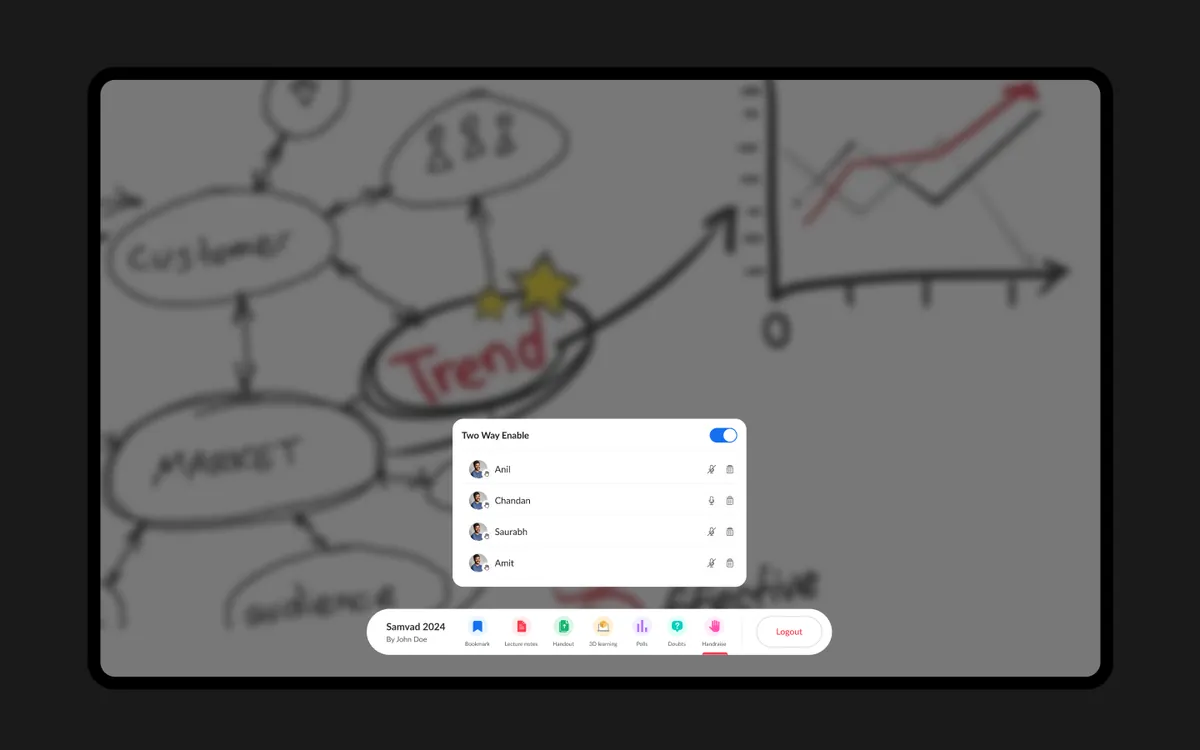
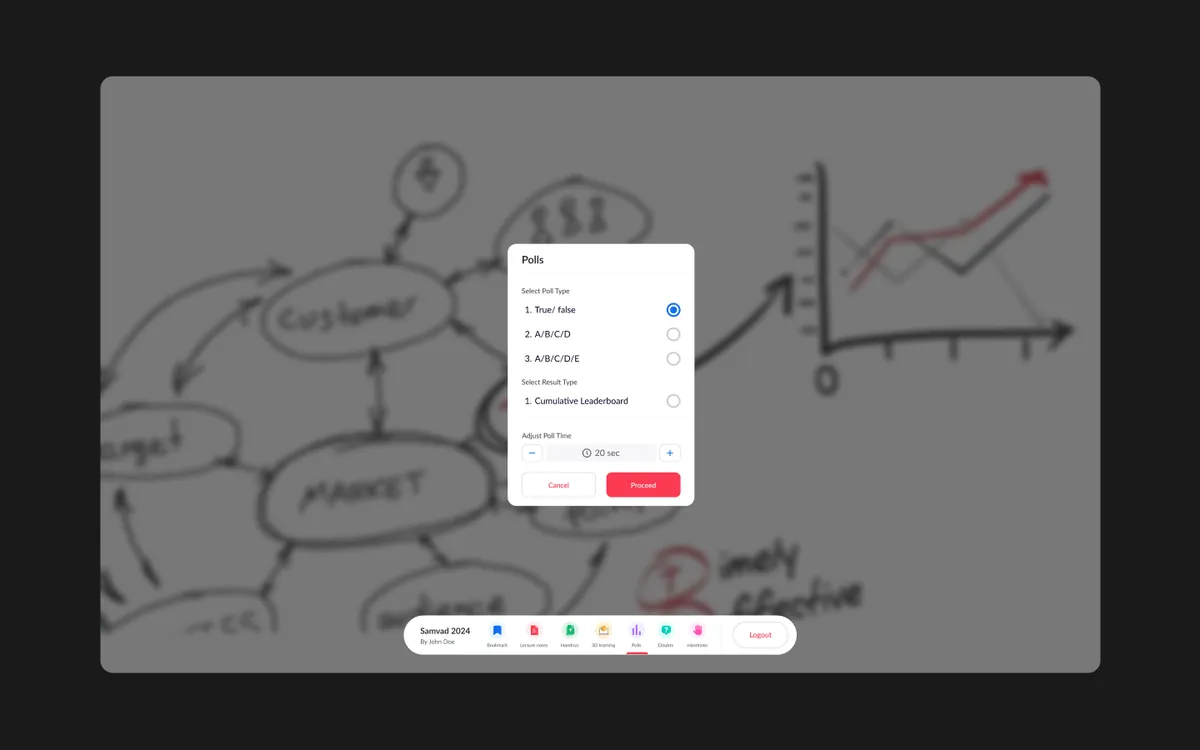
A streamlined teaching tool designed specifically for smart board interaction in classroom studios. The app boots directly into the writing canvas — teachers can start writing within seconds of entering the studio. The floating toolbar provides quick access to pens, highlighters, shapes, text, and an eraser, with the content library accessible through a swipe-in side panel. One-tap recording captures both the canvas content and the teacher's voice, automatically timestamping key moments.
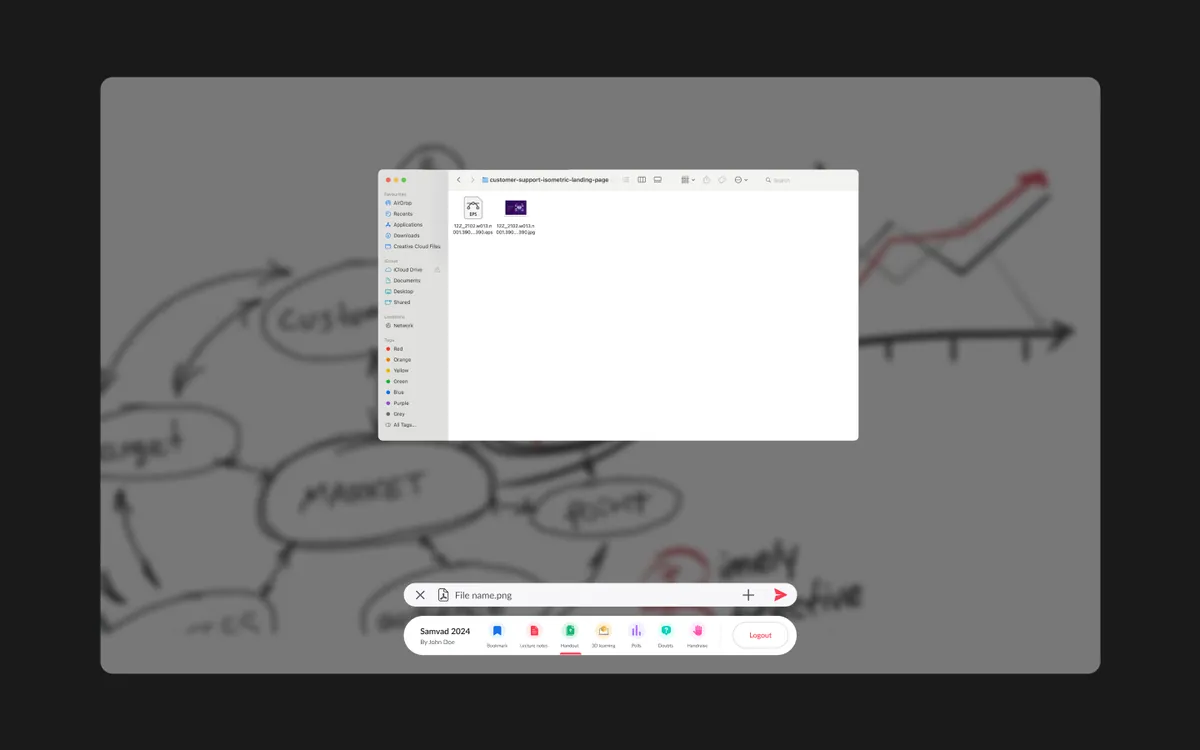
Content management is built into the workflow. Teachers can import slides, PDFs, and images from a centralized content library, annotate over them during class, and save the annotated versions back to the library. Completed sessions are automatically exported in multiple formats — video recordings go to the content pipeline for publishing, annotated PDFs are shared with students, and session summaries are generated for the content management team. Auto-save ensures no work is ever lost, even during power interruptions.
Touch targets, pen latency, and palm rejection calibrated for large-screen standing interaction — the writing experience feels as natural as a physical whiteboard.
One-tap recording captures canvas and audio simultaneously with automatic chapter markers at page changes and key annotation moments.
Pens, highlighters, shapes, text, and equation tools designed for teaching — with infinite canvas, zoom, and the ability to annotate over imported content.
Centralized library of slides, PDFs, and images accessible from the side panel — import, annotate, and save back without leaving the teaching flow.
Continuous auto-save ensures no work is lost. Sessions sync to the cloud automatically, making content available for publishing within minutes of class completion.
One-click export to video, annotated PDF, and image formats — feeding directly into the content publishing pipeline without manual post-processing.